 August 3, 2026
 9 minute reading
AI is transforming both professional workflows and accessibility in graphic design. According to data from Precedence Research, the generative AI design market has reached $993.90 million already in 2025, with projections showing growth to $13.95 billion by 2034.
This sort of growth shows that all industries are using AI more and more, and graphic design is no exception. Tedious tasks like image cropping and color correction have become automated, and that frees up designers to focus on creative tasks. This has also made it easier for non-professionals to break into the graphic design market.
However, there are real concerns about copyright issues and the quality of work that AI produces. But despite that AI use is growing, Mckinsey & Company reports that 65% of organizations now use some generative AI in at least one business function. That’s nearly double from the previous year.
Whether you’re just dipping your toe into graphic design for the first time or a seasoned pro, using AI is now a part of the graphic design process. Below, we’ll explore the top AI tools for graphic design—what makes them unique and what they are best used for.
Where AI super-powers human talent
Top AI tools for graphic design compared
1. Fiverr Go
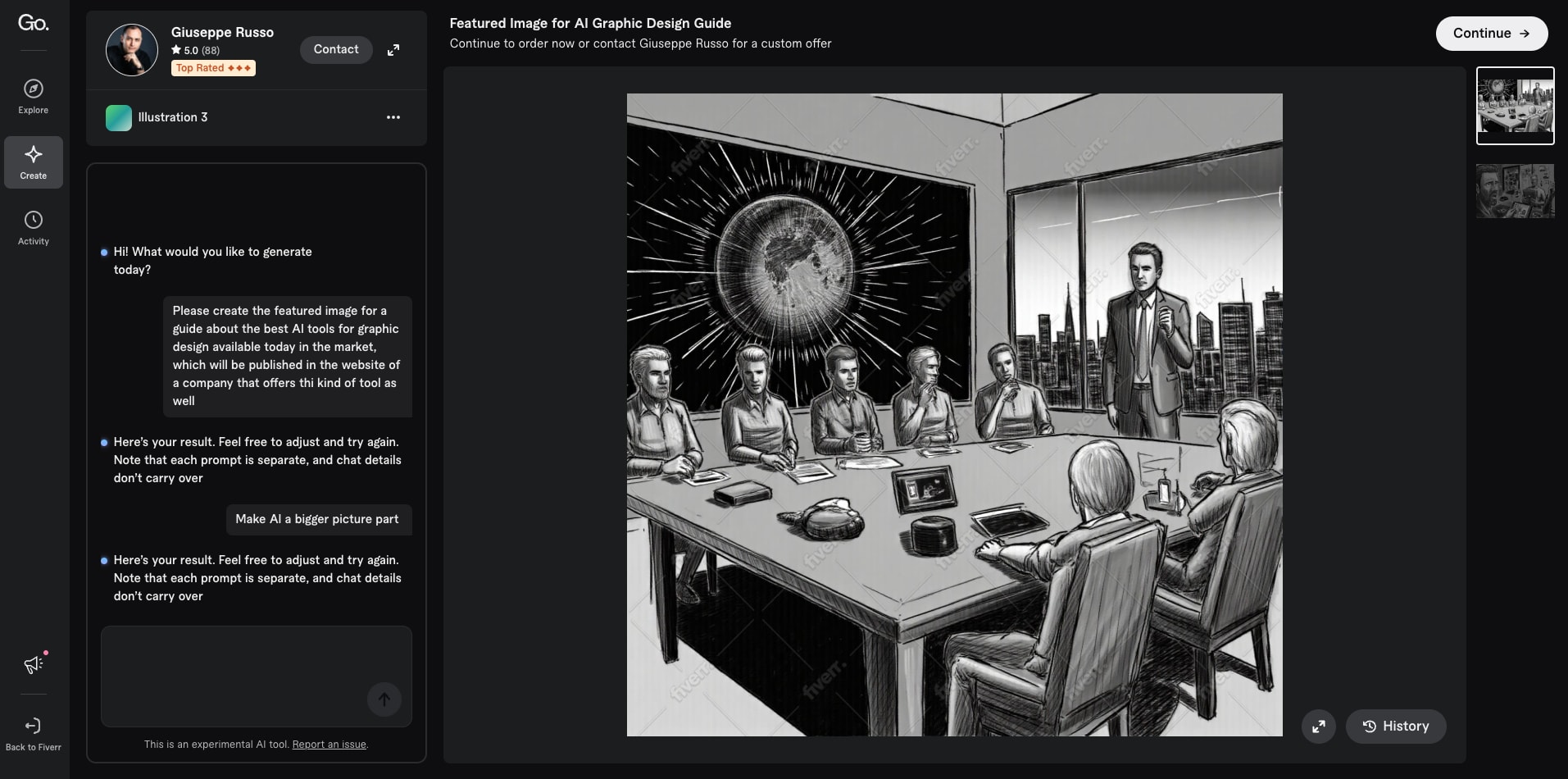
Key AI Features in Fiverr Go
- AI Creation Models: Allows freelancers to create and train AI models in their unique style.
- Custom image generation: Select a freelancer’s unique style and generate custom AI-enhanced images.
- Personalized copywriting: Get high-quality content in a freelancer’s tone and style.
- Instant audio downloads: Generate images and graphic assets instantly.
2. Adobe Sensei
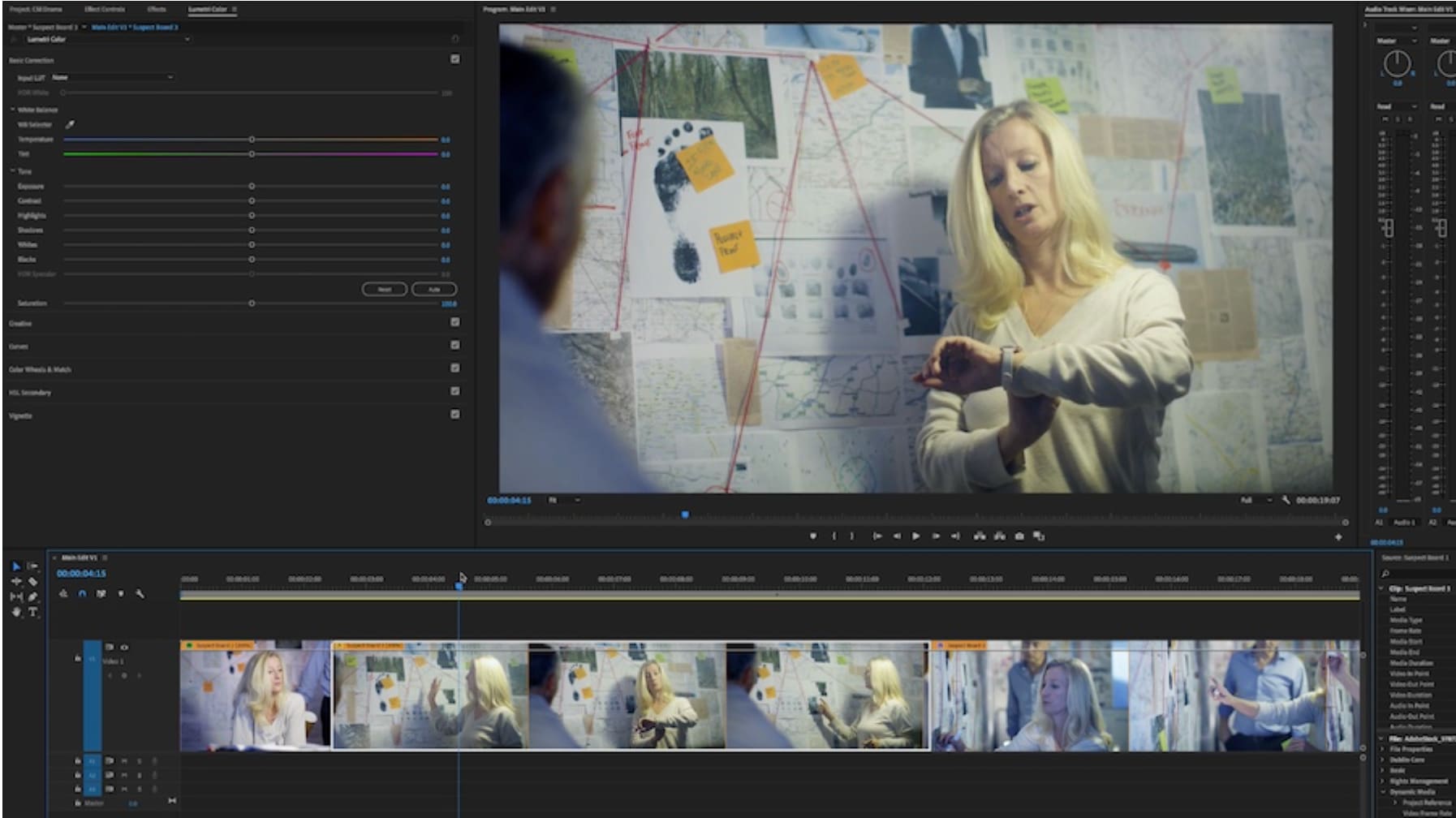
Key AI features in Adobe Sensei
- Content-aware fill: Uses AI to remove unwanted elements from your images, then the AI looks at the surrounding elements of the background and automatically fills in what should be there.
- Neural filters: Allows you to turn black-and-white photos into color ones, adjust someone's expression from a frown to a smile, or even make an image look like a Van Gogh painting.
- Font matching technology: Identifies fonts by analyzing a picture and either telling you what font it is or suggesting similar ones you can use.
- Auto-tagging: Analyzes your images and tags them for you. Adobe Sensei also learns how you like to organize things over time.
- Automated layout design tools: Adjust images to be responsive to any format—whether a website, phone screen, or billboard.
3. Canva
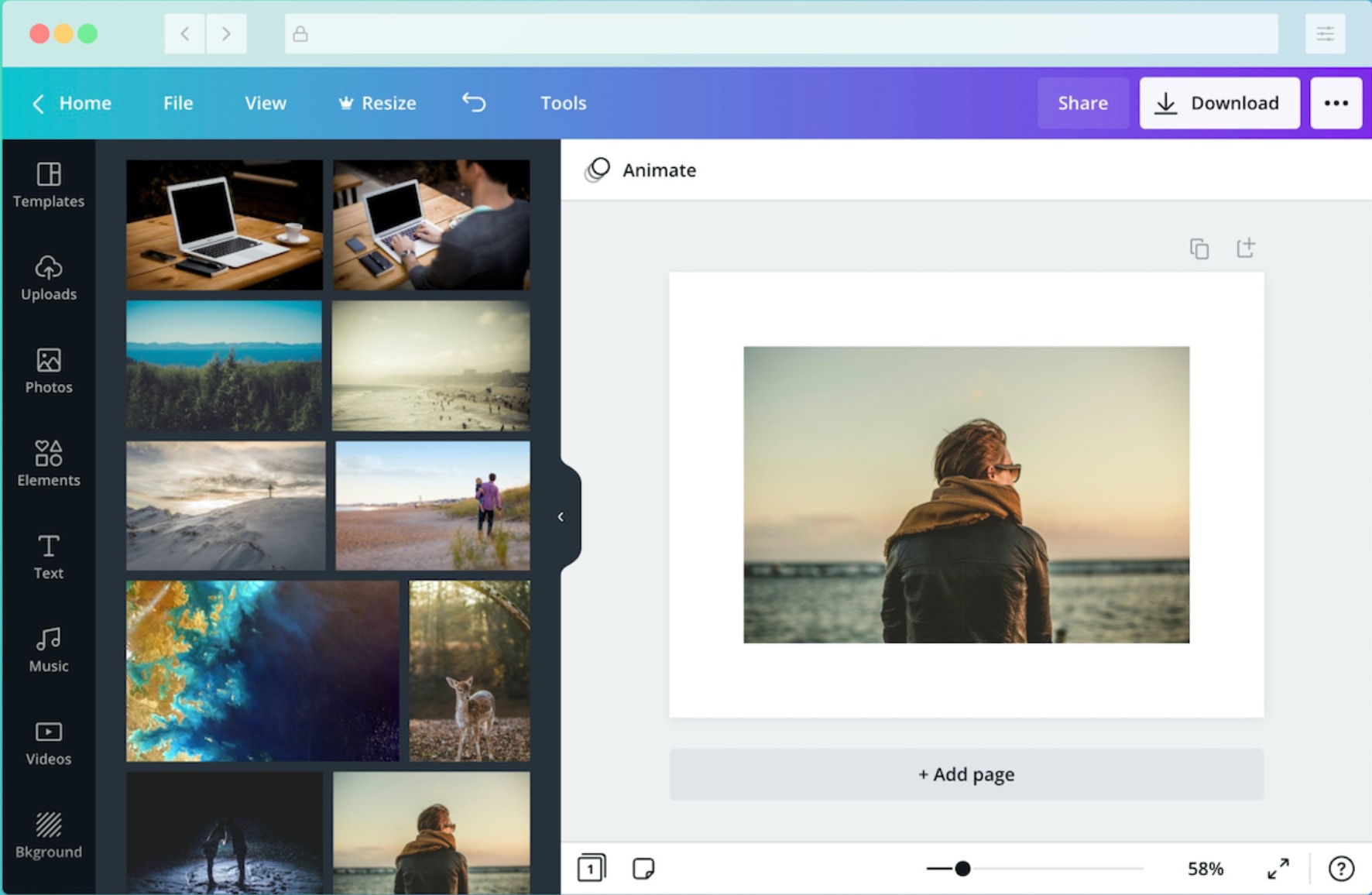
Key AI Features in Canva
- Magic Design: Turns your ideas into custom templates instantly—no more starting from scratch.
- Text-to-image generation: Creates visuals from written descriptions.
- Magic Write: Generates headlines and copy that match your brand's voice.
- One-click background removal and image enhancement: Removes backgrounds and enhances images instantly with AI-powered tools.
- Smart resize: Automatically adapts designs for different platforms (like Instagram to Facebook).
4. DALL-E
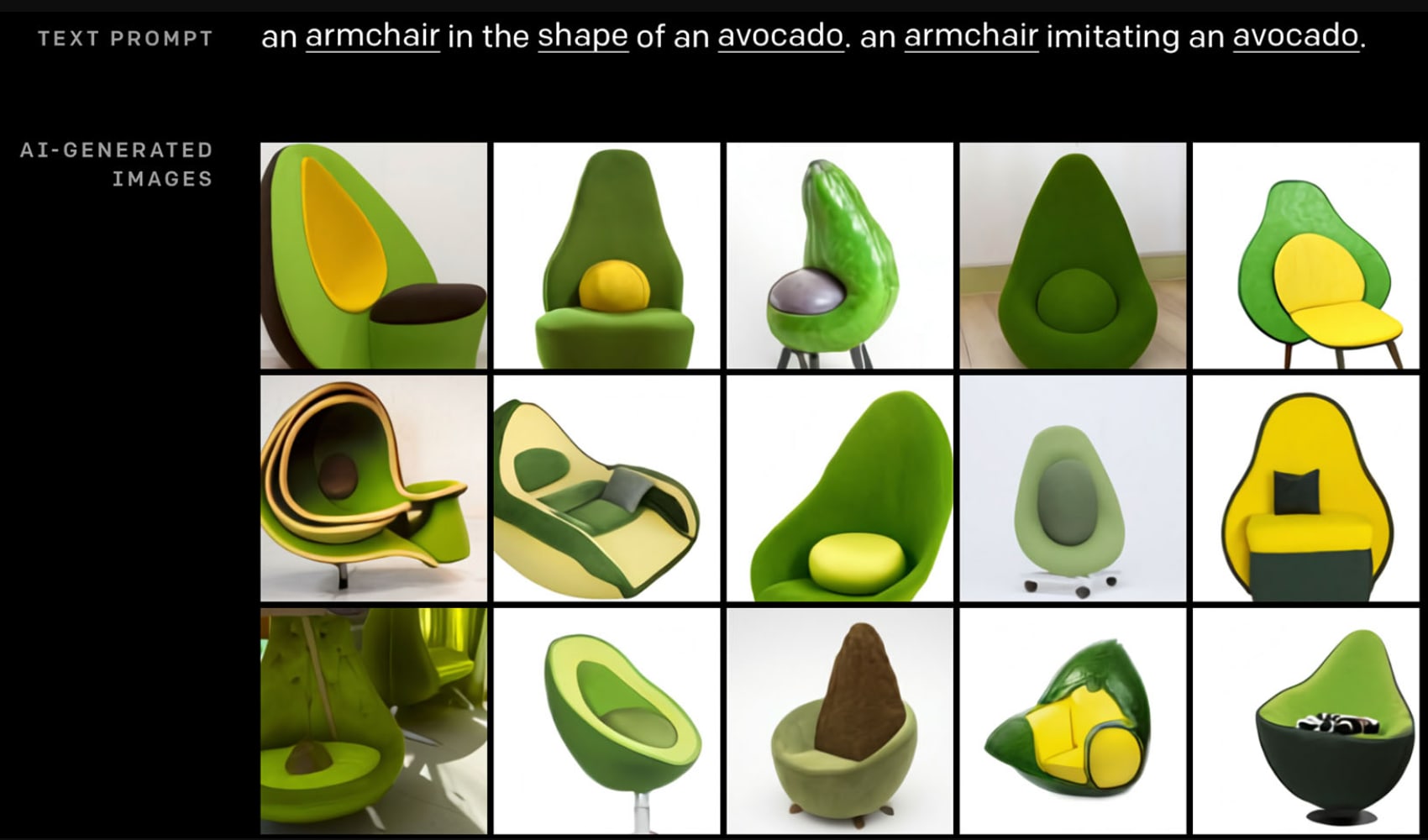
Key AI Features in DALL-E
- Text-to-image generation: Understands complex, detailed prompts to create highly customized visuals.
- High-resolution output: Produces images suitable for professional use.
- Multiple style options: Offers a range of styles, from photorealistic to artistic illustrations.
- Ability to generate variations: Quickly creates multiple versions of the same concept.
- Seamless background removal and replacement: Eliminates backgrounds and replaces them effortlessly.
Hire Midjourney Artists on Fiverr today

Level 2
I will do custom graphic design, image editing, vector with ai
Offers video consultations



Level 2
I will create ai product photography with realistic model lifestyle images
Offers video consultations


Level 2
I will fix, generate, and edit ai images using photoshop and ai
Offers video consultations





Vetted Pro
I will create stunning ai art and photo edit the images to perfection
Offers video consultations


Vetted Pro
I will create professional ai concept art and photo realistic visuals
Offers video consultations


Vetted Pro
I will create ai product photography for your ecommerce store and ads
Offers video consultations


Vetted Pro
I will generate premium product images using ai and photoshop
Offers video consultations

Level 2
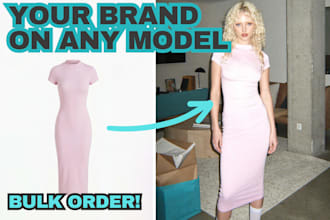
I will turn your clothing into realistic ai fashion model photos
Offers video consultations


Vetted Pro
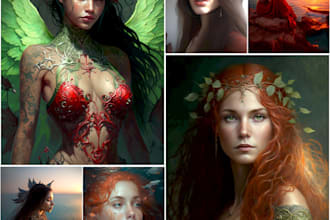
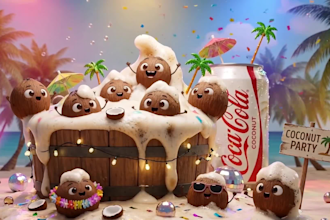
I will create ai videos to promote new concepts, brands and products
Offers video consultations

Top Rated
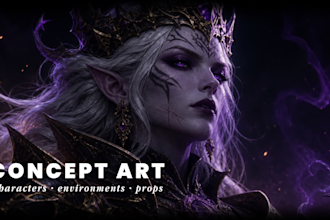
I will create ai character design and concept art with midjourney
Offers video consultations






Level 2
I will create amazing graphic arts for you using midjourney ai
Offers video consultations




Vetted Pro
I will produce ultra realistic ai photos images for brands and websites
Offers video consultations

Vetted Pro
I will design investor pitch deck presentations with full branding concept
From $150Offers video consultations







Level 2
I will generate custom ai images with stable diffusion, flux, or midjourney
Offers video consultations






5. Midjourney
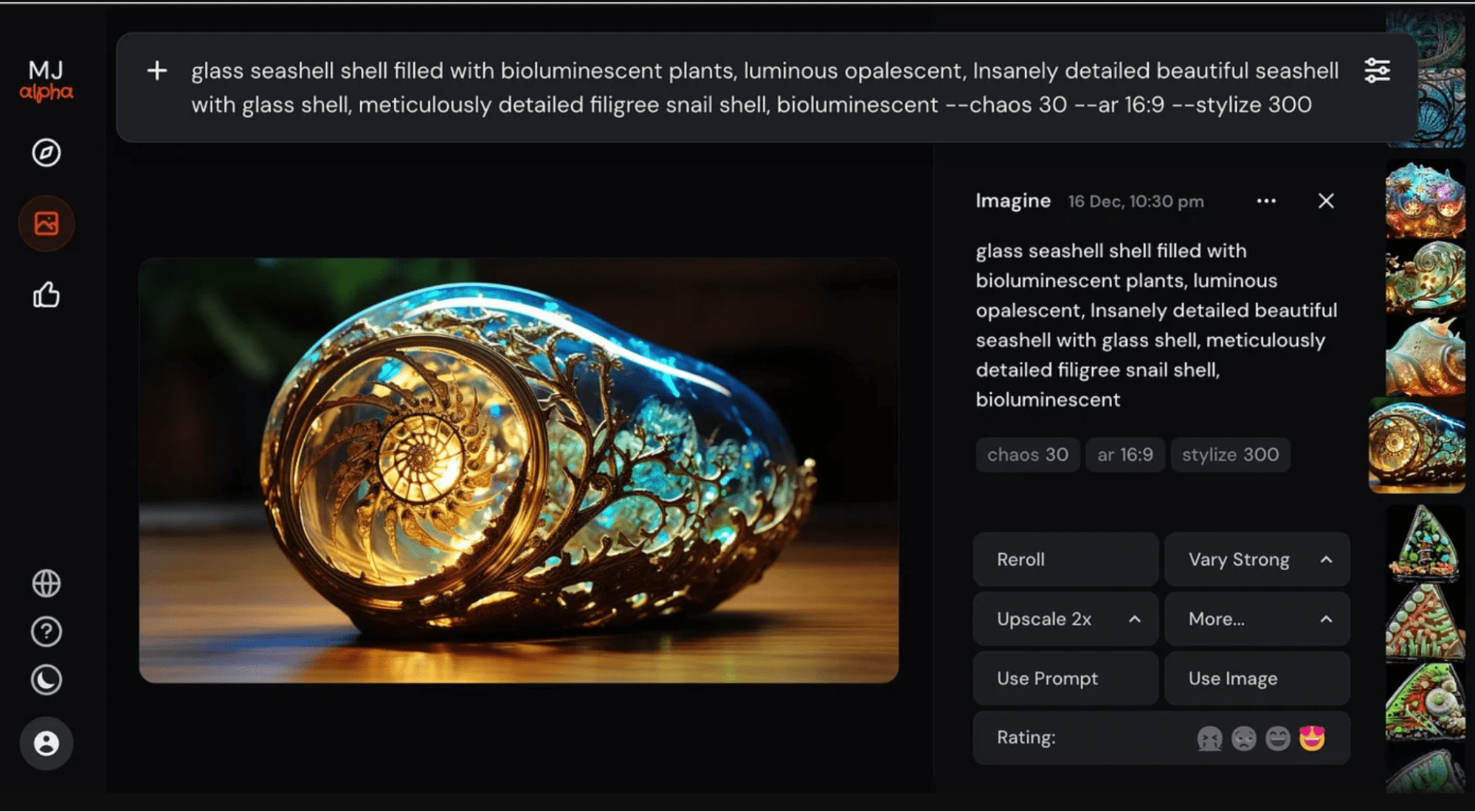
Key AI Features in Midjourney
- Creates highly detailed images: Generates visuals with sophisticated lighting and textures.
- Offers extensive control: Allows precise adjustments to image style and composition.
- Generates multiple variations: Quickly produces different versions of the same concept.
- Produces high-resolution outputs: Delivers professional-quality images.
- Includes unique artistic styles: Ranges from photorealistic to surreal designs.
- Supports a community-driven platform: Connects users through Discord for learning and inspiration.
6. Khroma
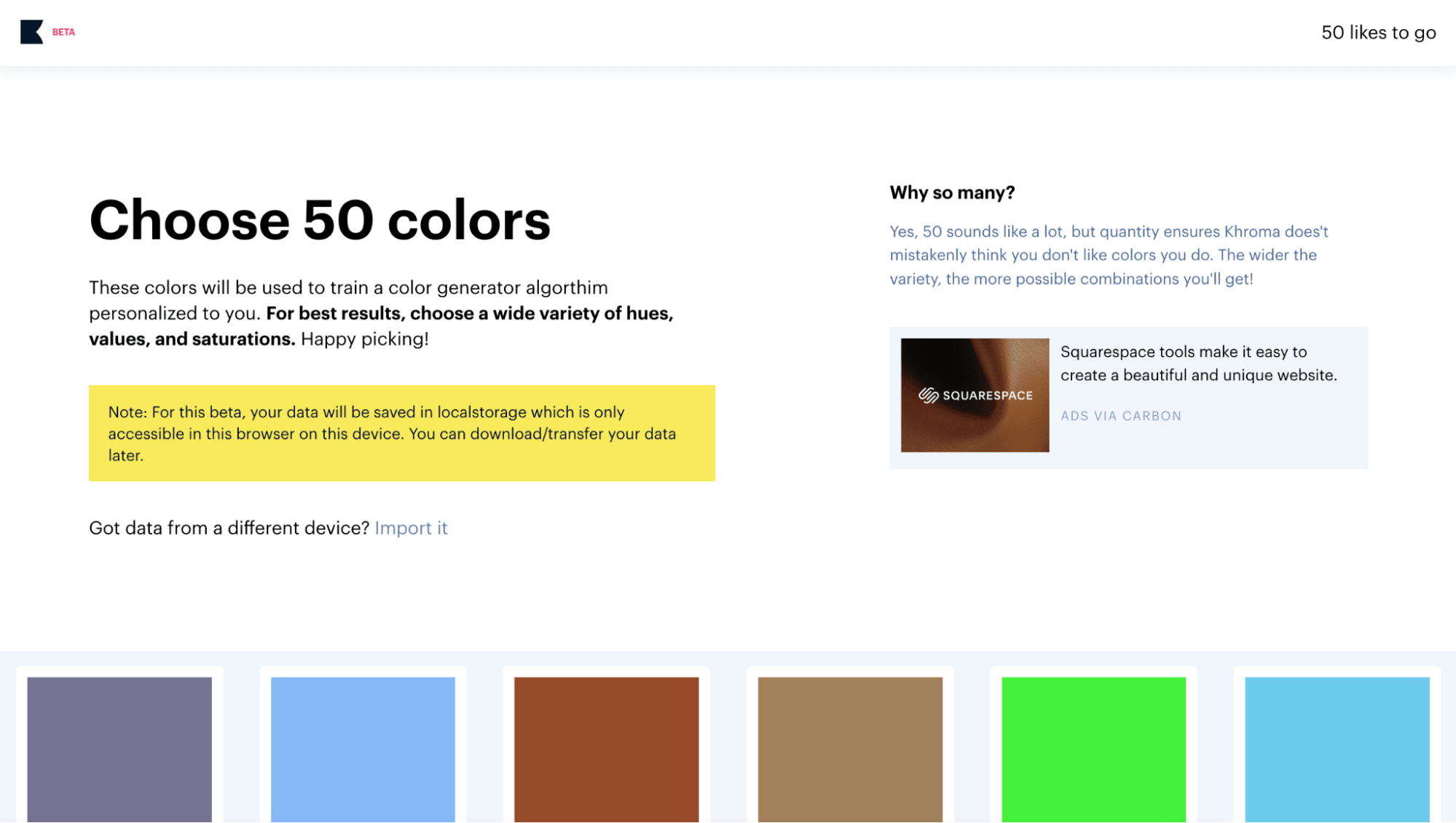
Key AI Features in Khroma
- Color preferences: Analyzes 50+ initial color selections to understand your taste.
- Custom palettes: Generates unique color combinations based on your preferences.
- Themed palettes: Provides color schemes for typography, backgrounds, and UI.
- Color details: Displays hex codes, RGB values, and other key info.
- Accessibility ratings: Meets web design contrast standards.
- Offline functionality: Allows designing anywhere without an internet connection.
- Real-time search: Finds colors based on mood, contrast, or style instantly.
7. Remove.bg
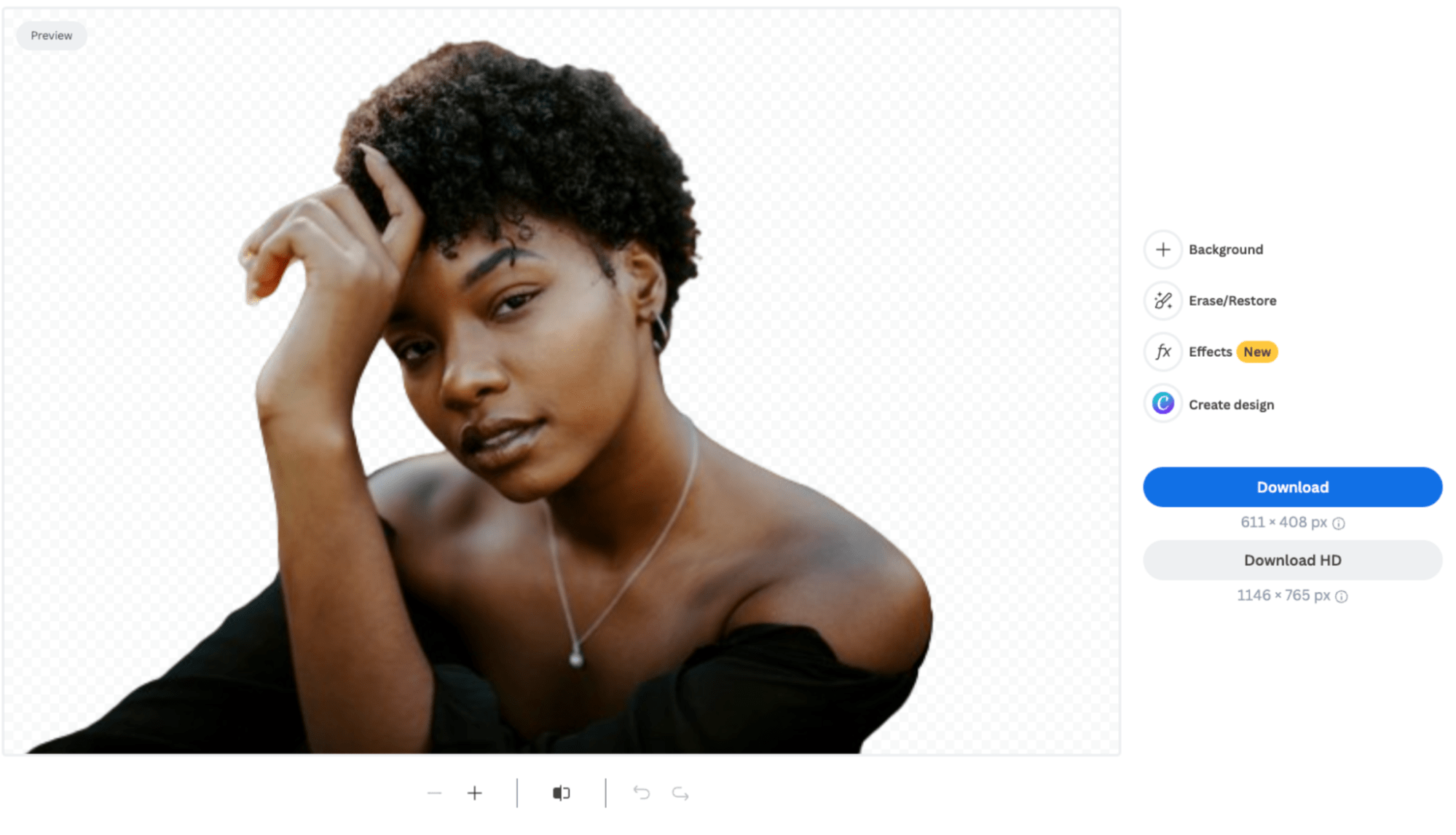
Key AI Features in Remove.bg
- One-click background removal: Instantly removes backgrounds with AI precision.
- AI-powered edge detection: Preserves fine details like hair and fur.
- Custom background replacement: Offers tools to swap backgrounds seamlessly.
8. Ideogram.ai
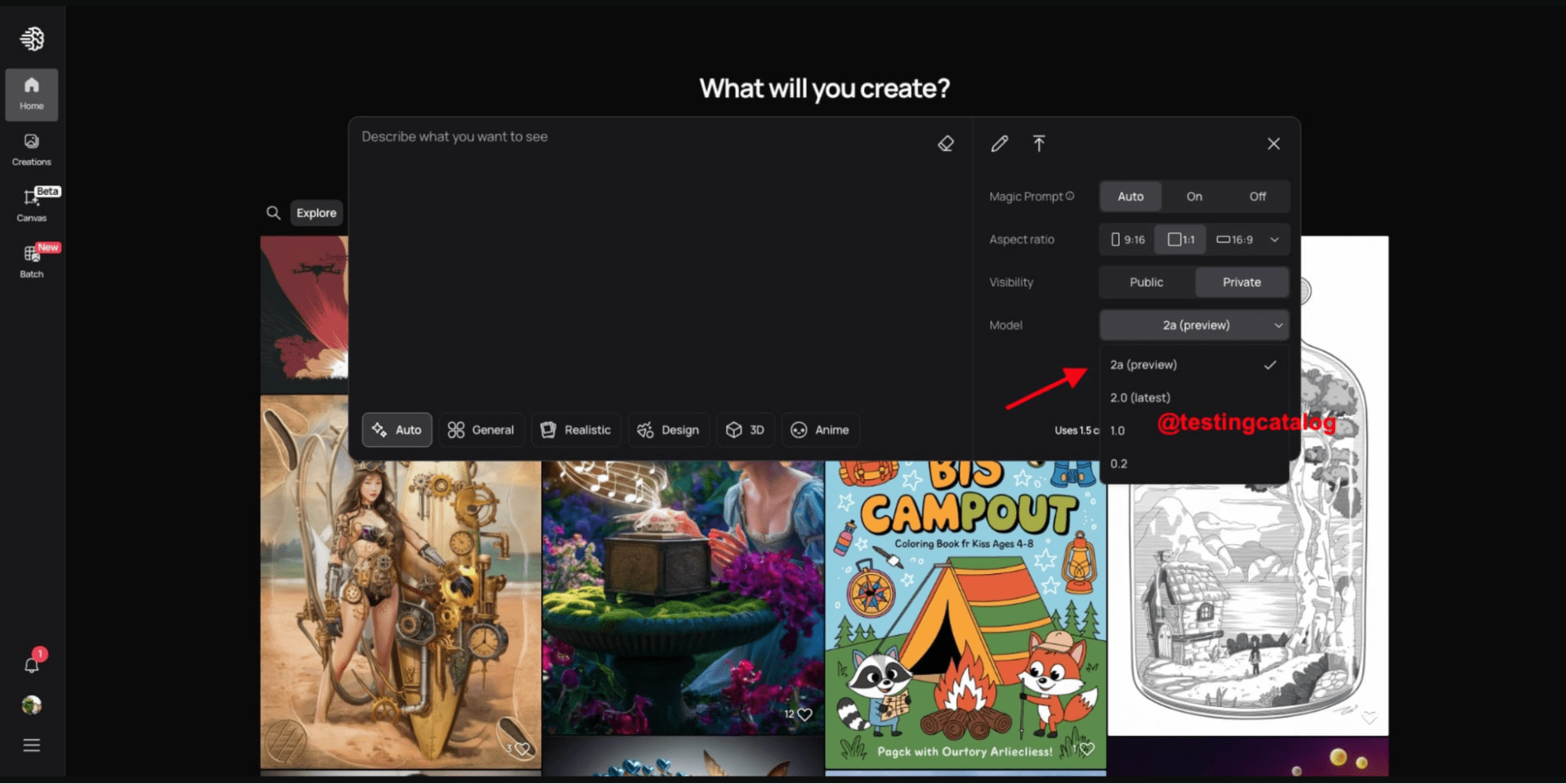
Key AI Features Ideogram.ai
- Advanced typography handling: Enhances text styling and layout precision.
- Magic Fill: Edits seamlessly by blending new elements into images.
- Multiple artistic styles: Offers a range from photo realistic to abstract designs.
- Automatic format adaptation: Adjusts designs for different formats, platforms, and devices.
Find Expert AI Artists for Hire
Level 2
I will do custom graphic design, image editing, vector with ai
Offers video consultations
Level 2
I will create ai product photography with realistic model lifestyle images
Offers video consultations
Level 2
I will fix, generate, and edit ai images using photoshop and ai
Offers video consultations
Vetted Pro
I will create stunning ai art and photo edit the images to perfection
Offers video consultations
Vetted Pro
I will create professional ai concept art and photo realistic visuals
Offers video consultations
Vetted Pro
I will create ai product photography for your ecommerce store and ads
Offers video consultations
Vetted Pro
I will generate premium product images using ai and photoshop
Offers video consultations
Level 2
I will turn your clothing into realistic ai fashion model photos
Offers video consultations
Vetted Pro
I will create ai videos to promote new concepts, brands and products
Offers video consultations
Top Rated
I will create ai character design and concept art with midjourney
Offers video consultations
Level 2
I will create amazing graphic arts for you using midjourney ai
Offers video consultations
Vetted Pro
I will produce ultra realistic ai photos images for brands and websites
Offers video consultations
Vetted Pro
I will design investor pitch deck presentations with full branding concept
From $150Offers video consultations
Level 2
I will generate custom ai images with stable diffusion, flux, or midjourney
Offers video consultations
9. Uizard
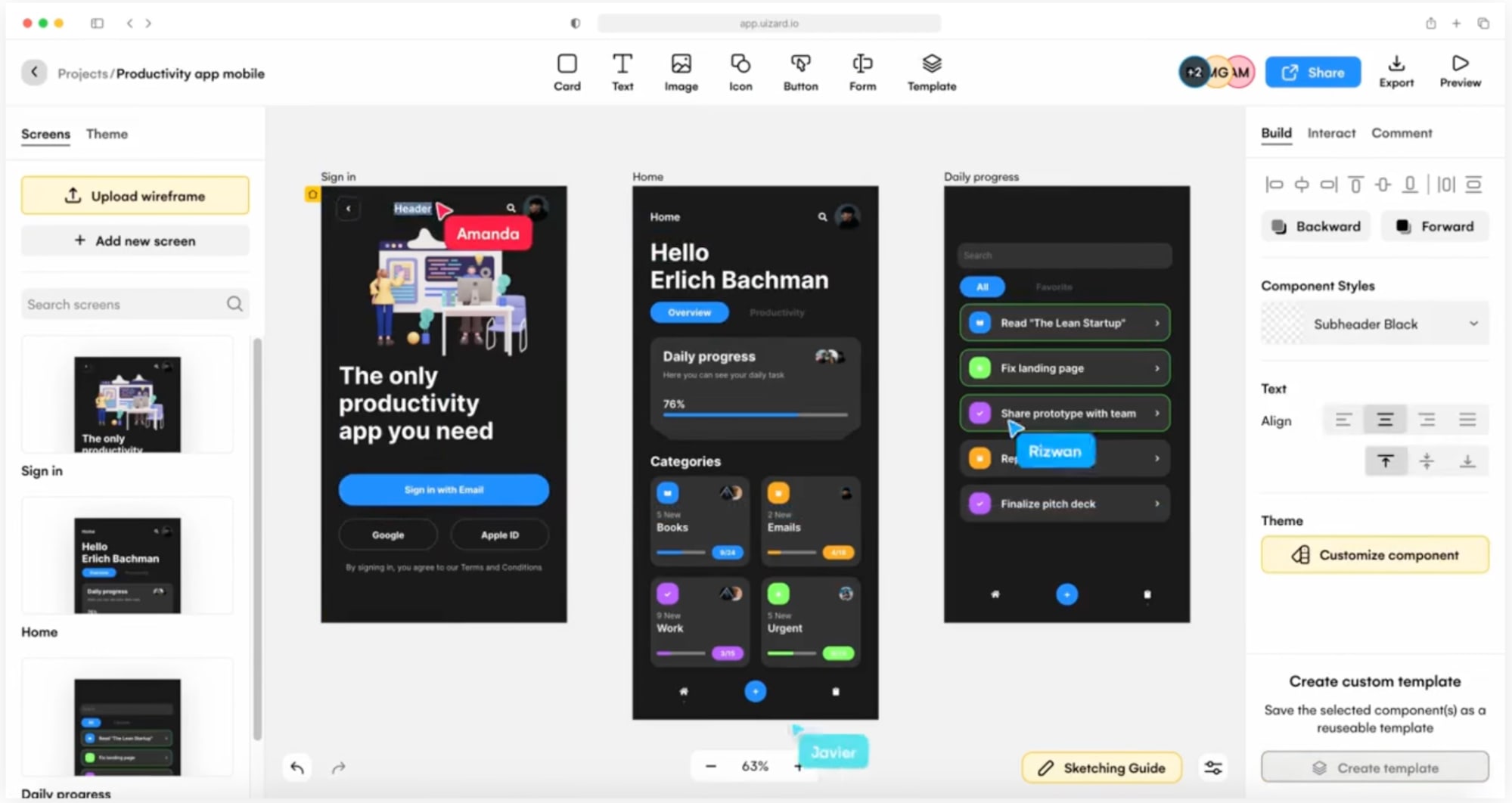
Key AI Features in Uizard
- Autodesigner: Generates multi-screen, high-fidelity prototypes from a text description.
- Theme generator: Extracts colors, fonts, and styles from an uploaded photo to create a matching theme.
- Focus predictor: Creates heat maps to show where users' eyes are likely to go.
- Text assistant: Suggests alternative text when you have writer’s block.
- Image assistant: Finds or suggests image replacements based on your description.
10. Artbreeder
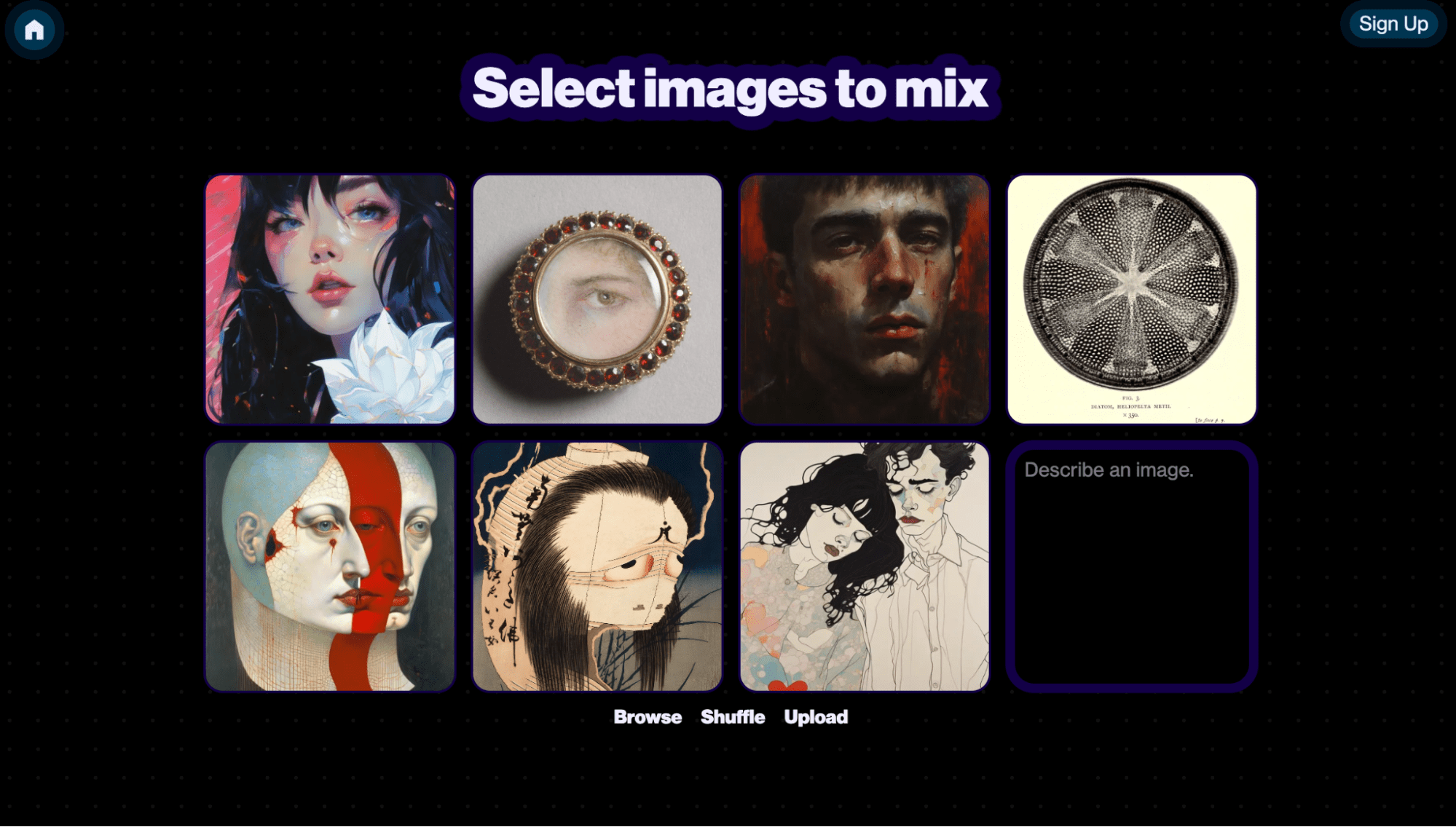
Key AI Features in Artbreeder
- Image mixing: Blends multiple images to generate new ones.
- Attribute adjustment: Provides precise control over the appearance of generated images.
- AI-powered image generator: Creates unique images based on text or reference inputs.
How to choose the right AI design tool
- Usability and quality of output: Make sure the interface feels intuitive and gives you enough control over the final results. You want a tool that enhances your creativity, not one that makes you feel like you're fighting with the software.
- Compatibility and workflow: Check if the tool works smoothly with your existing design programs. Can you easily import and export files? Does it support the file formats you commonly use? The last thing you need is a tool that ends up costing you time because of technical complications.
- Cost and value: Consider both the price tag and what you're getting in return. Some tools offer great free tiers for basic needs, while others have premium pricing because of powerful features. Think about how often you'll use features and whether the time saved is worth the investment.
- Quality and consistency: Look for tools that consistently deliver professional-quality results. Test the outputs—are they up to your standards? Can you achieve the specific style you're aiming for?
Find an AI artist for your business
Level 2
I will do custom graphic design, image editing, vector with ai
Offers video consultations
Level 2
I will create ai product photography with realistic model lifestyle images
Offers video consultations
Level 2
I will fix, generate, and edit ai images using photoshop and ai
Offers video consultations
Vetted Pro
I will create stunning ai art and photo edit the images to perfection
Offers video consultations
Vetted Pro
I will create professional ai concept art and photo realistic visuals
Offers video consultations
Vetted Pro
I will create ai product photography for your ecommerce store and ads
Offers video consultations
Vetted Pro
I will generate premium product images using ai and photoshop
Offers video consultations
Level 2
I will turn your clothing into realistic ai fashion model photos
Offers video consultations
Vetted Pro
I will create ai videos to promote new concepts, brands and products
Offers video consultations
Top Rated
I will create ai character design and concept art with midjourney
Offers video consultations
Level 2
I will create amazing graphic arts for you using midjourney ai
Offers video consultations
Vetted Pro
I will produce ultra realistic ai photos images for brands and websites
Offers video consultations
Vetted Pro
I will design investor pitch deck presentations with full branding concept
From $150Offers video consultations
Level 2
I will generate custom ai images with stable diffusion, flux, or midjourney
Offers video consultations
Hire a professional designer from Fiverr today
AI tools for graphic design FAQs
Can I use AI for graphic design?
Is there a free AI for graphic design?
What is the AI tool for creating visuals?
Is there AI in Canva?

Related Guides
About Author
Mina Son
Mina is a freelance ecommerce writer that has bylines with companies like Descript and Peak Freelance. She has a background in film, TV, radio/podcasting, and history. When she's not tethered to her computer, Mina loves hiking, camping, consuming stories, and annoying her husky, Moro.
